# How to setup a GitHub Action for Code Security analysis

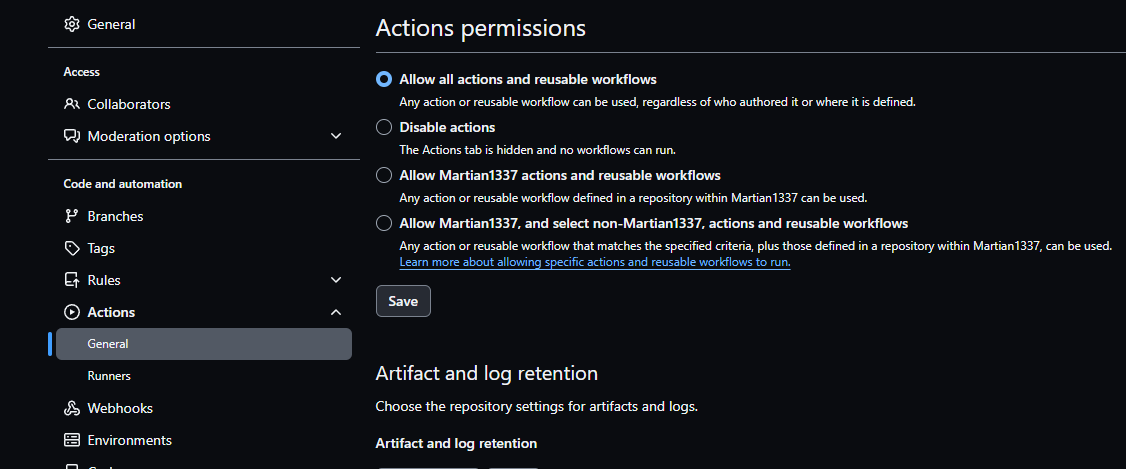
1. Configure Github Actions in the Setting tab of the repo that needs to be scanned. Select Desired setting and save.

<figure><img src="https://2615529102-files.gitbook.io/~/files/v0/b/gitbook-x-prod.appspot.com/o/spaces%2F997kcgdjxml4NiriygeG%2Fuploads%2Fgit-blob-353fc0fd2a523e8203108bf4303ece1d4b3e1a9c%2Fa.png?alt=media" alt=""><figcaption></figcaption></figure>

2. Now visit "Code Security and analysis in the security section of settings. You can now see that Code Scanning is available to setup.

<figure><img src="https://2615529102-files.gitbook.io/~/files/v0/b/gitbook-x-prod.appspot.com/o/spaces%2F997kcgdjxml4NiriygeG%2Fuploads%2Fgit-blob-901b224097a49620831b69b5ff9a57c448b3cc13%2F1%20(1).png?alt=media" alt=""><figcaption></figcaption></figure>

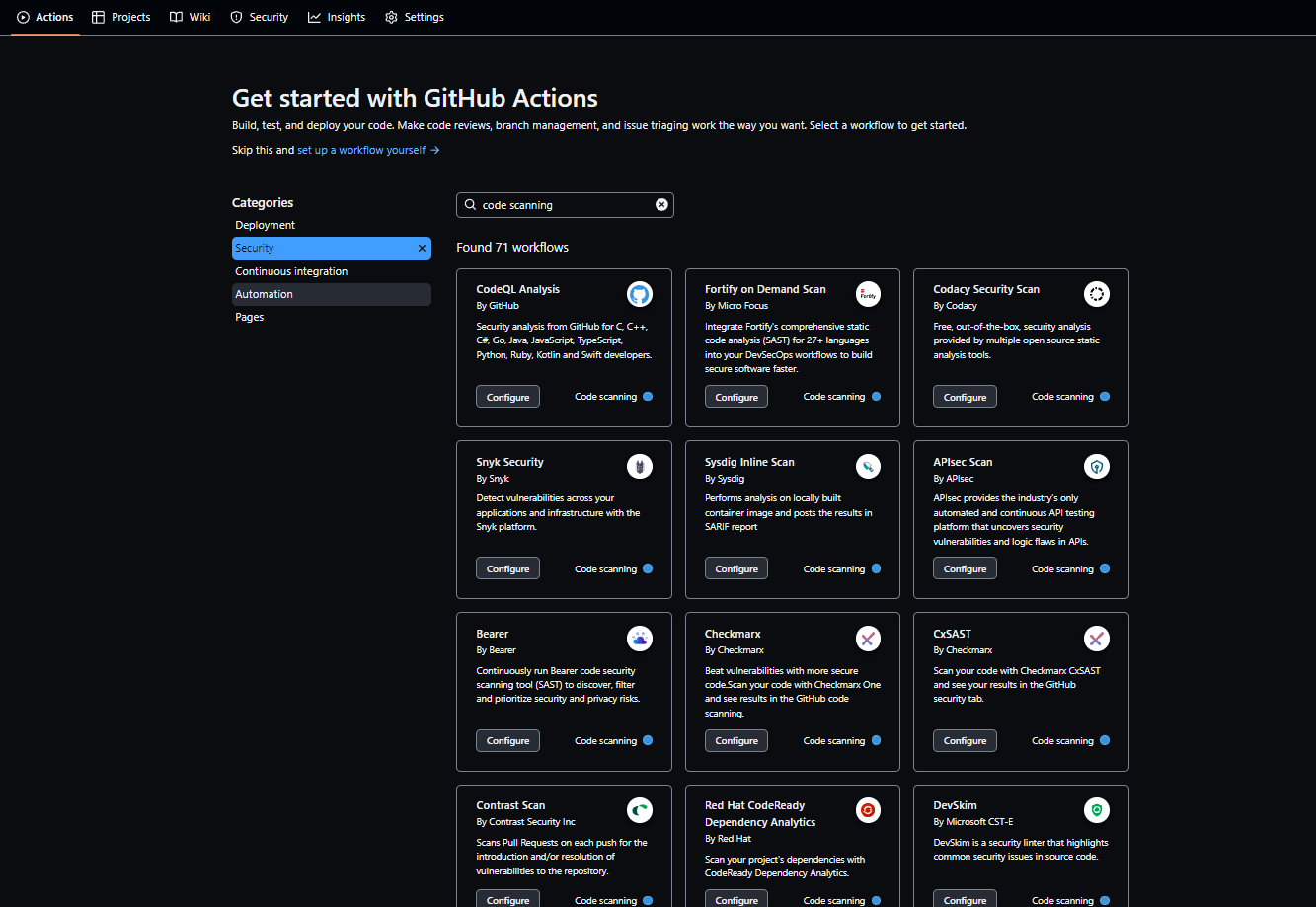
3. Click "Explore Workflows" to see all available code scanning tool options

<figure><img src="https://2615529102-files.gitbook.io/~/files/v0/b/gitbook-x-prod.appspot.com/o/spaces%2F997kcgdjxml4NiriygeG%2Fuploads%2Fgit-blob-1b09613d8b65b16ba46dbf8e5c322fc56b494b55%2F2.png?alt=media" alt=""><figcaption></figcaption></figure>

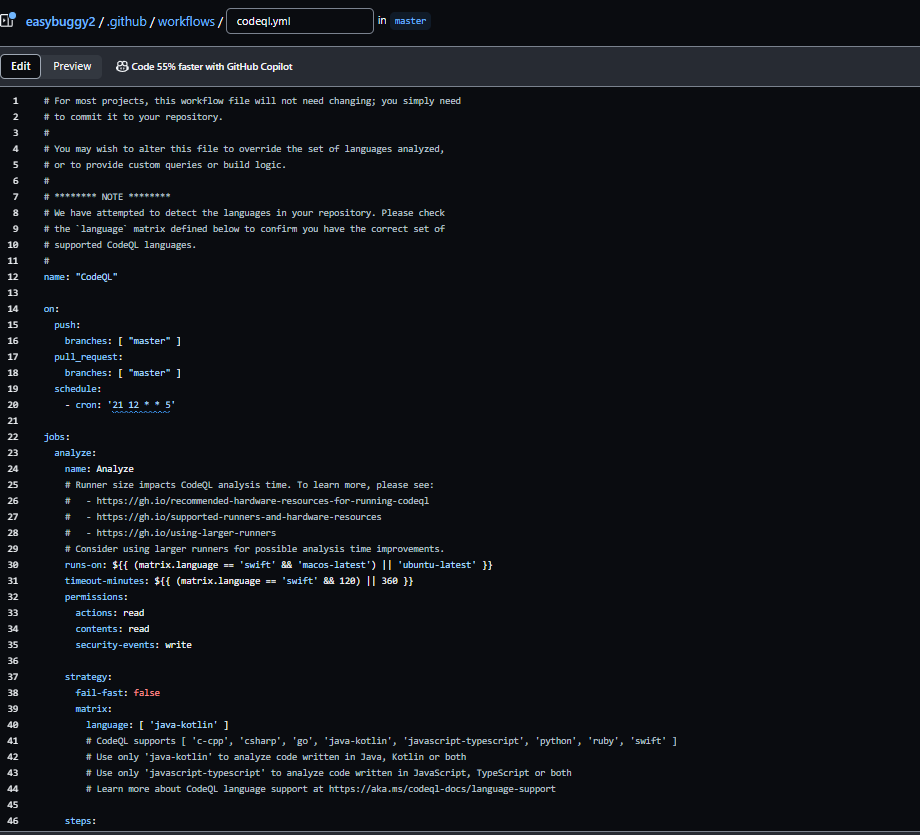
4. Select desired code scanning tool and edit the drafted YAML file if needed. For this example was selected:

<figure><img src="https://2615529102-files.gitbook.io/~/files/v0/b/gitbook-x-prod.appspot.com/o/spaces%2F997kcgdjxml4NiriygeG%2Fuploads%2Fgit-blob-a42b88b07a17394b3343030e31363a52f69e08e3%2F3.png?alt=media" alt=""><figcaption></figcaption></figure>

Note: Github will attempt to sense the language that repository is using. Notice above that Github has already that easybuggy is a Java app and added that language in line #40 of the screenshot

5. Ensure that Github has detected the correct language for scanning and edit accordingly
6. Configure the push/pull branches for scanning based on your needs
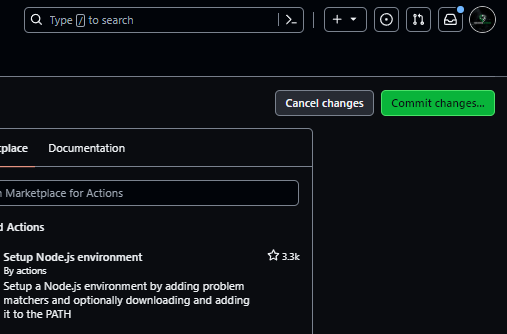
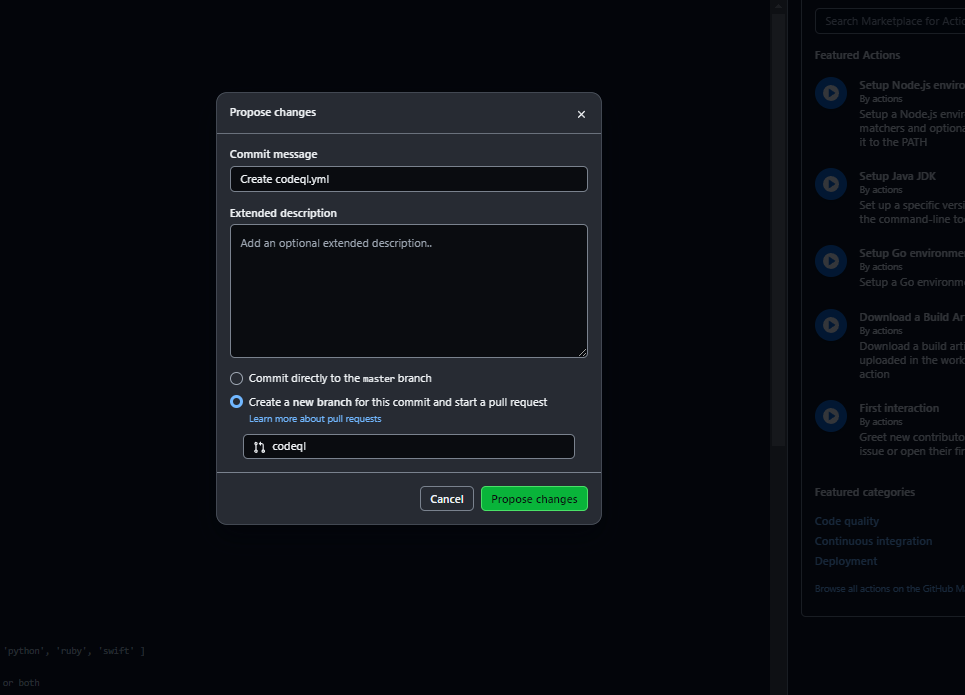
7. Click commit changes on the right of the screen

<figure><img src="https://2615529102-files.gitbook.io/~/files/v0/b/gitbook-x-prod.appspot.com/o/spaces%2F997kcgdjxml4NiriygeG%2Fuploads%2Fgit-blob-c5a9f7b1f865002f058d97b0cf2e207c4d858d32%2F4.png?alt=media" alt=""><figcaption></figcaption></figure>

8. Select "Create a new branch..." so that a new branch can be created just in case Github's autobuild feature doesn't work as intended

<figure><img src="https://2615529102-files.gitbook.io/~/files/v0/b/gitbook-x-prod.appspot.com/o/spaces%2F997kcgdjxml4NiriygeG%2Fuploads%2Fgit-blob-cdb37ee1b5e394d0768f1f0af55c4f35a67dedba%2F5.png?alt=media" alt=""><figcaption></figcaption></figure>

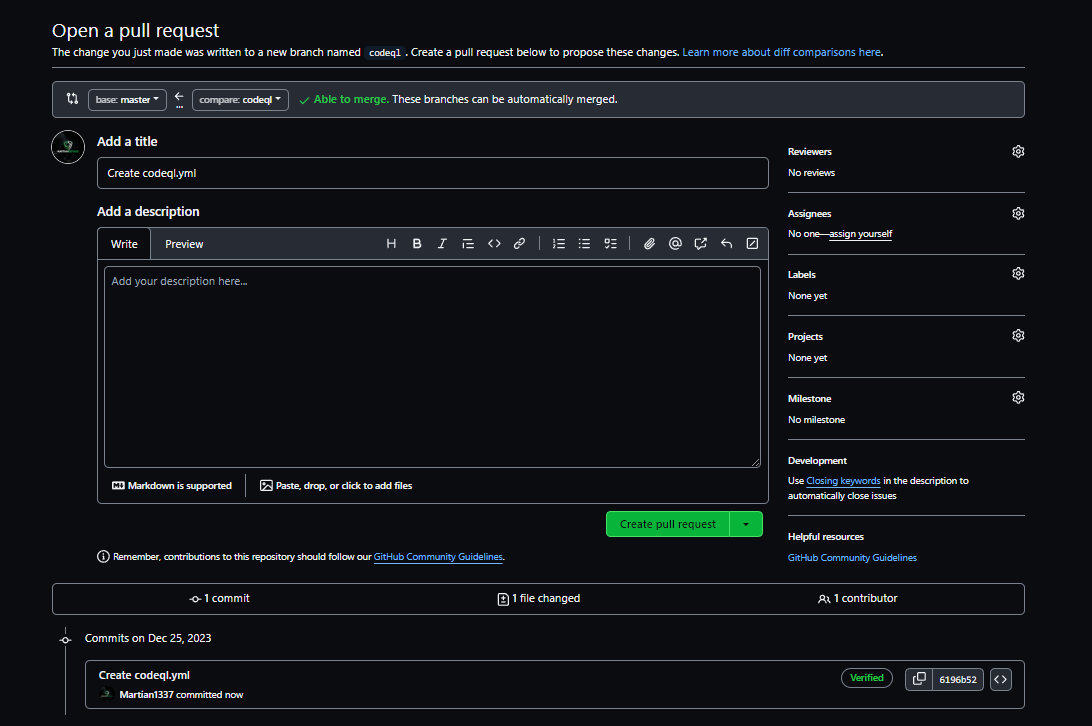
9. Click "Propose Changes" to draft the pull request and annotate any description information if needed.

<figure><img src="https://2615529102-files.gitbook.io/~/files/v0/b/gitbook-x-prod.appspot.com/o/spaces%2F997kcgdjxml4NiriygeG%2Fuploads%2Fgit-blob-c0efcef2ab50cb1d5c10e2100441e3e30184bb62%2F6.png?alt=media" alt=""><figcaption></figcaption></figure>

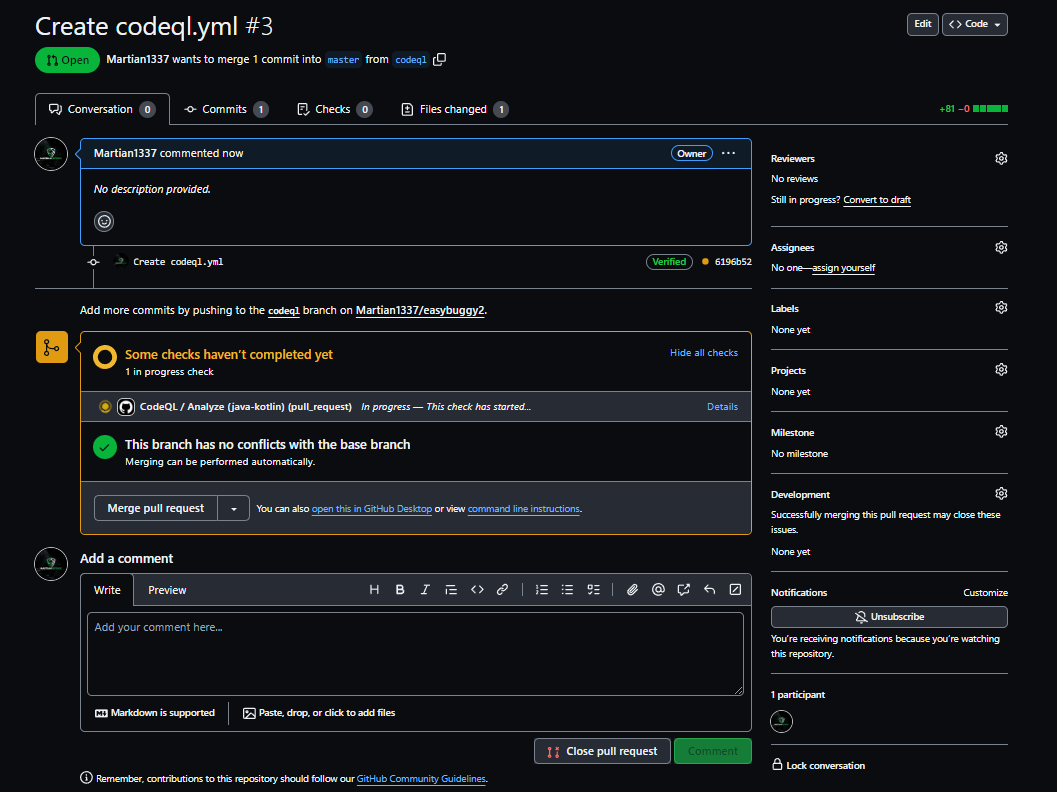
10. Click "Create Pull Request" to start the job

<figure><img src="https://2615529102-files.gitbook.io/~/files/v0/b/gitbook-x-prod.appspot.com/o/spaces%2F997kcgdjxml4NiriygeG%2Fuploads%2Fgit-blob-6eedd8bb3ade417bfa6a50dff3c26b9d2b196078%2F7.png?alt=media" alt=""><figcaption></figcaption></figure>

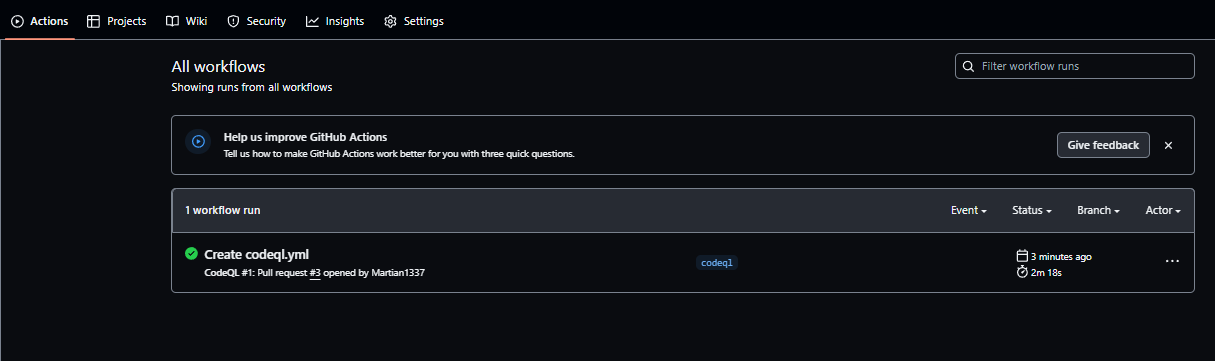
11. Visit the Actions tab when the job is complete to see the workflow runs

<figure><img src="https://2615529102-files.gitbook.io/~/files/v0/b/gitbook-x-prod.appspot.com/o/spaces%2F997kcgdjxml4NiriygeG%2Fuploads%2Fgit-blob-4362dca5e91f44d68619d1a02c8e7338395923e8%2F8.png?alt=media" alt=""><figcaption></figcaption></figure>

13. Select the run and see if the build completed without issues
14. If the job fails, this could mean that the Autobuild process needs some adjustments for success. This happens when your application has a different/custom build outside of the standard build process. This can be corrected by configuring the correct settings in the YAML file.
15. Once the job completes, click into the run to see the stages of the build and analysis

<figure><img src="https://2615529102-files.gitbook.io/~/files/v0/b/gitbook-x-prod.appspot.com/o/spaces%2F997kcgdjxml4NiriygeG%2Fuploads%2Fgit-blob-061d82218104f411cf535da0f8ff3c9fbe1584ae%2F9%20(1).png?alt=media" alt=""><figcaption><p>Successful build and analysis</p></figcaption></figure>

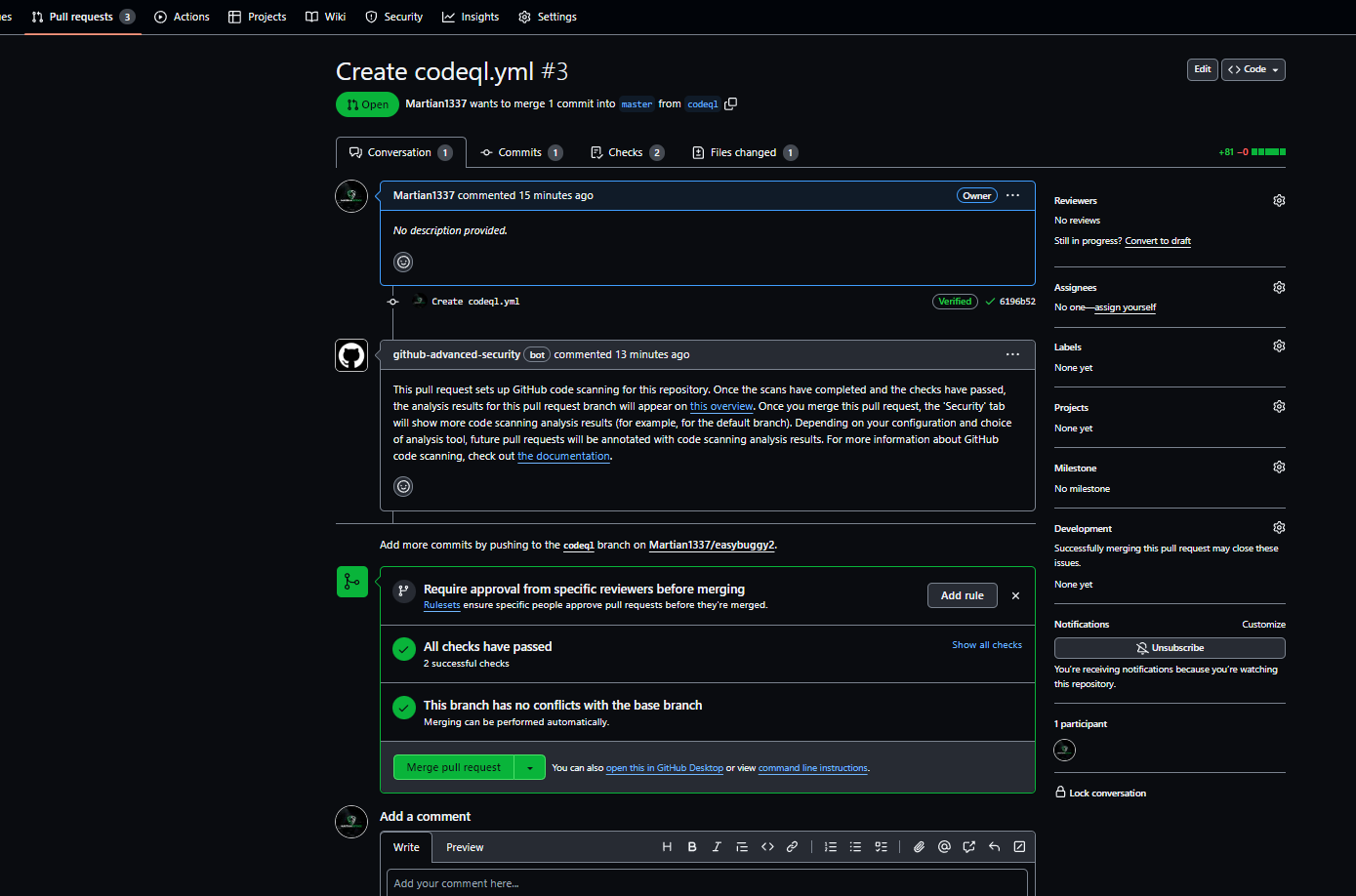
15. Now go to **Pull Requests** and merge the request into master branch for results

<figure><img src="https://2615529102-files.gitbook.io/~/files/v0/b/gitbook-x-prod.appspot.com/o/spaces%2F997kcgdjxml4NiriygeG%2Fuploads%2Fgit-blob-1d7474c935af62221fcaeb8f8b793fb33fef189e%2Fmerge%20%233.png?alt=media" alt=""><figcaption></figcaption></figure>

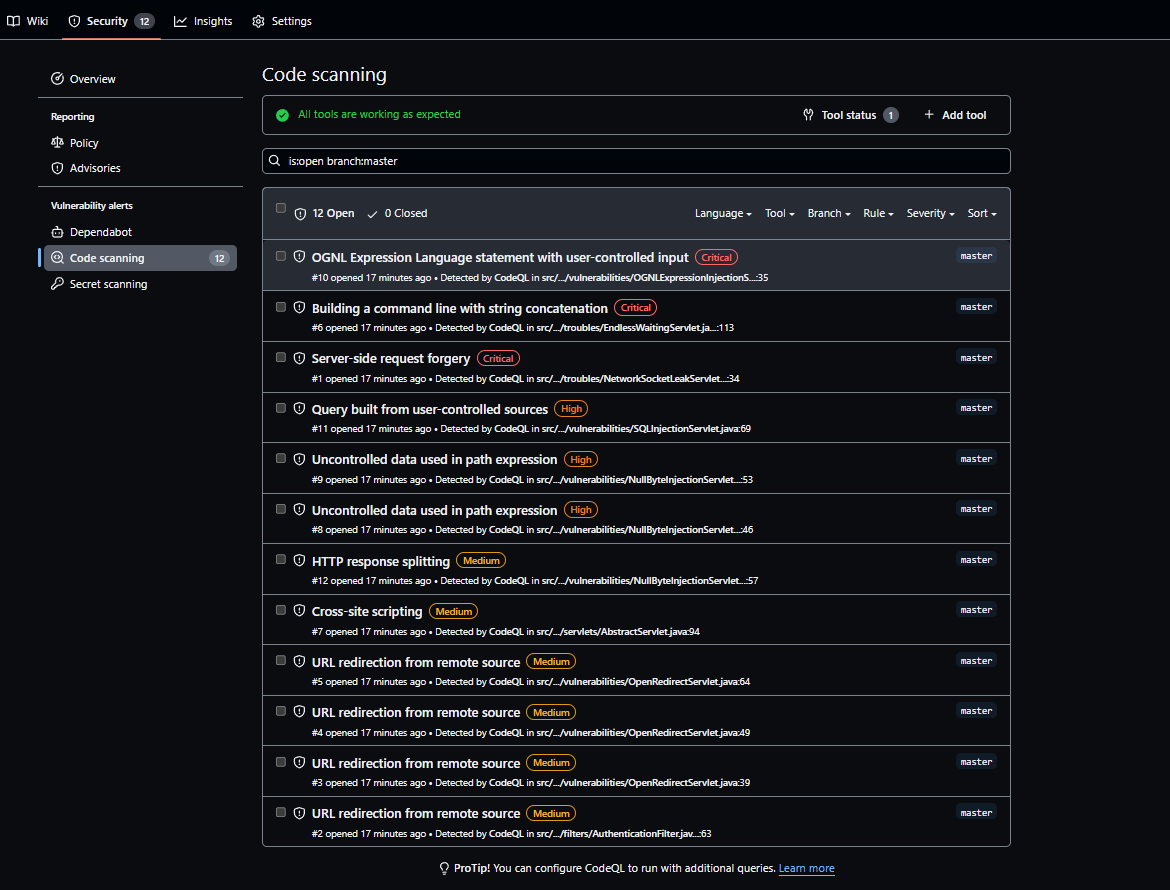
17. Go to the **Security** tab and select **code scanning** to see the results of the scan

<figure><img src="https://2615529102-files.gitbook.io/~/files/v0/b/gitbook-x-prod.appspot.com/o/spaces%2F997kcgdjxml4NiriygeG%2Fuploads%2Fgit-blob-2c81594d941ea7b9c6483ce7d74ae3d7d4a47db8%2F10.png?alt=media" alt=""><figcaption></figcaption></figure>

18. Now every time there is a pull request from the master branch, this will show if there are any issues with the code before merging